
If a computer is connected to two or more monitors simultaneously, it is necessary to lock the IR touch screen to the specific monitor during installation. Otherwise, a touch operation on touch screen A might appear on monitor B. We need to lock touch screen A to monitor A and touch screen B to monitor B.
How to Lock IR Touch Screen in Multi-Monitor Setup
1. Open the IR touch configuration software

First, download the IR touch configuration software to a Windows computer (supports Windows 7/8/10/11), unzip and open "InfraRedTouch.exe".
2. Click "Advanced Features"
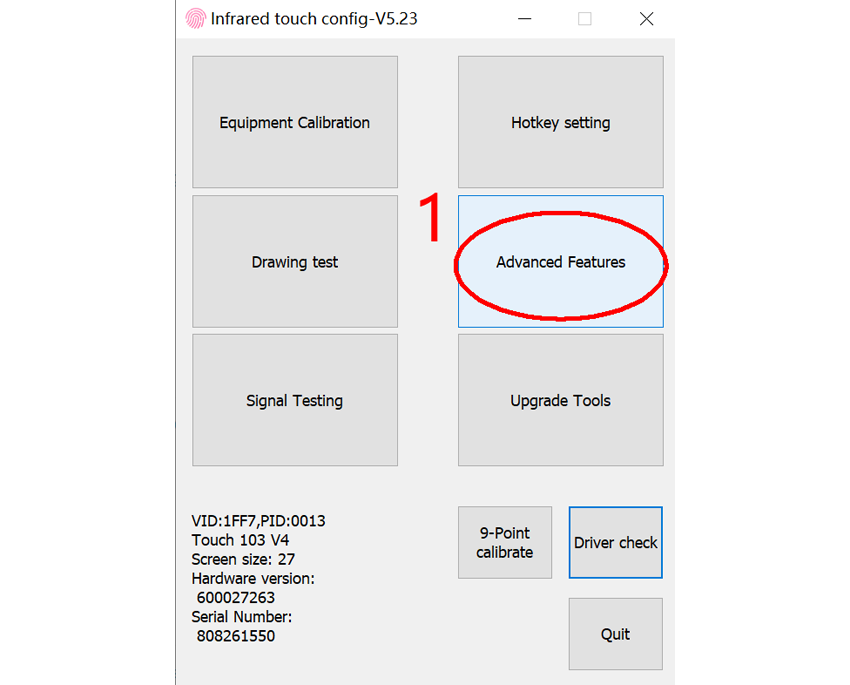
3. Click "Tablet PC Config"

4. Click "Setup"

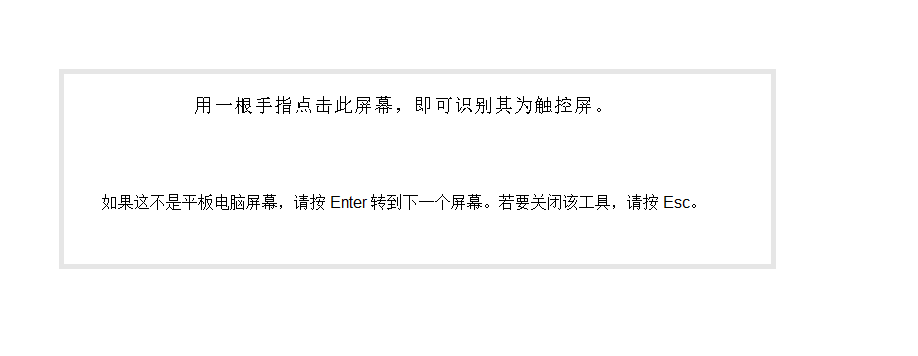
5. Press the "Enter" key, and the information shown in the image below will switch between different monitors. When it appears on the monitor you want to lock, tap the IR touch screen with your finger or a touch pen. At this point, the locking of the IR touch screen and the monitor is complete.